

Elastic Cloud
Connect Elastic Cloud as an access source using an Elastic Cloud API key with the Organization owner role, so Probo can list the members and API keys that hold roles in your organization.
Probo reads your Elastic Cloud organization through the Elastic Cloud API so you can review who has access. The roster covers the organization’s members and its API keys. An API key is a non-human principal with roles of its own, up to and including Organization owner.
Prerequisites
Section titled “Prerequisites”- Probo organization administrator access
- The Organization owner role in Elastic Cloud, which a key can only receive from an Organization owner
- An organization on the commercial Elastic Cloud. Elastic Cloud for US government (GovCloud) uses a separate API host that this connector does not reach
Collected Fields
Section titled “Collected Fields”| Probo field | Elastic Cloud field | Notes |
|---|---|---|
| Name | member name, API key description | The API key’s description is the name entered when the key was created |
email | An API key has none | |
| Role | role_assignments | One entry per role and scope, with how far it reaches, for example Organization owner, Deployment admin (all deployments) or Elasticsearch viewer (2 projects). Application roles granted with a role follow inside the parentheses |
| Admin | role_assignments.organization | Flagged for Organization owner alone. Billing admin and a Deployment admin on every deployment administer only billing or deployments, so they do not count |
| Status | API key expiration_date | If Elastic still lists a key past its expiration date, it is marked inactive. Elastic Cloud reports no status for a member |
| MFA | Not supported | |
| Last login | Not supported | |
| External ID | member user_id, API key id | Stable identifier used to track the account across reviews |
| Created at | member member_since, API key creation_date | When the member joined the organization, or when the key was created |
Pending invitations are not collected. Elastic Cloud lists them separately and expires them after 72 hours.
Probo reports no multi-factor state for an Elastic Cloud account. Elastic requires multi-factor authentication for a password login and leaves it to the identity provider for a Google, Microsoft or SAML login. The API reports neither case per member.
Step 1: Create an API Key
Section titled “Step 1: Create an API Key”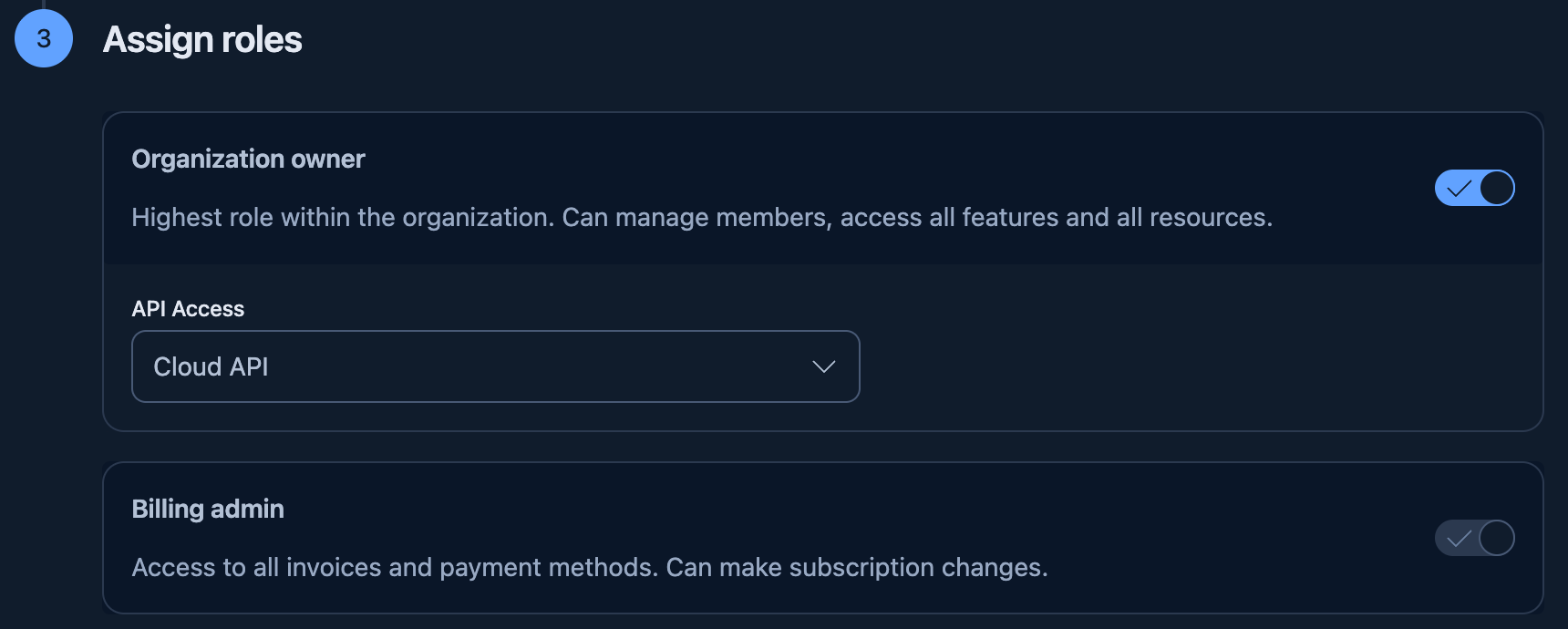
- In the Elastic Cloud console, signed in as an Organization owner, open Organization > API keys and click Create API key.
- Enter a Name, for example
Probo Access Review, and pick the longest duration your policy allows under Expires. - Under Assign roles, turn on Organization owner and leave API Access on Cloud API. The other option, Cloud, Elasticsearch, and Kibana API, also grants access to every Serverless project’s APIs, which Probo does not need.
- Click Create API key, then copy the key from the API key created message. Elastic shows it only once.
Step 2: Connect in Probo
Section titled “Step 2: Connect in Probo”- In Probo, go to Settings > Connectors and click Add more to open the Marketplace.
- Find Elastic Cloud and open it.
- Enter a Name for the connection (e.g.
main), paste the key into API key, and click Connect. - Go to Access Review > Sources, click Add sources, tick Elastic Cloud, and click Add.
Probo names the source after your Elastic Cloud organization and pulls its members and API keys into your campaigns.
Troubleshooting
Section titled “Troubleshooting”To replace a key, create a new one with the Organization owner role in the same Elastic Cloud organization. Then, on Settings > Connectors, click the key icon (Update API key) on the Elastic Cloud connector, paste the new key, and click Save API key. The connector keeps its name and its sources. Probo reads the organization from the key on every sync, so a key from another organization would review that organization under the existing source.
- The connector shows Disconnected. Elastic rejected the key: it was not copied whole, or it was revoked in Elastic Cloud. Confirm it was created under Organization > API keys in the Elastic Cloud console, then replace it if needed.
- The connector shows Not authorized, or a sync fails with “This Elastic Cloud API key cannot see your organization’s role assignments”. The key does not hold the Organization owner role. Replace it with a key that does.
- A source that worked stops syncing. Check whether the key has expired or been revoked, and replace it if so. A network error or an Elastic outage clears on a later sync without a new key.